Medium Cover Images: Sizes, Best Practices & Examples
Everything you need to know about Medium cover images. Sizes, best practices, and tips to make your articles stand out.
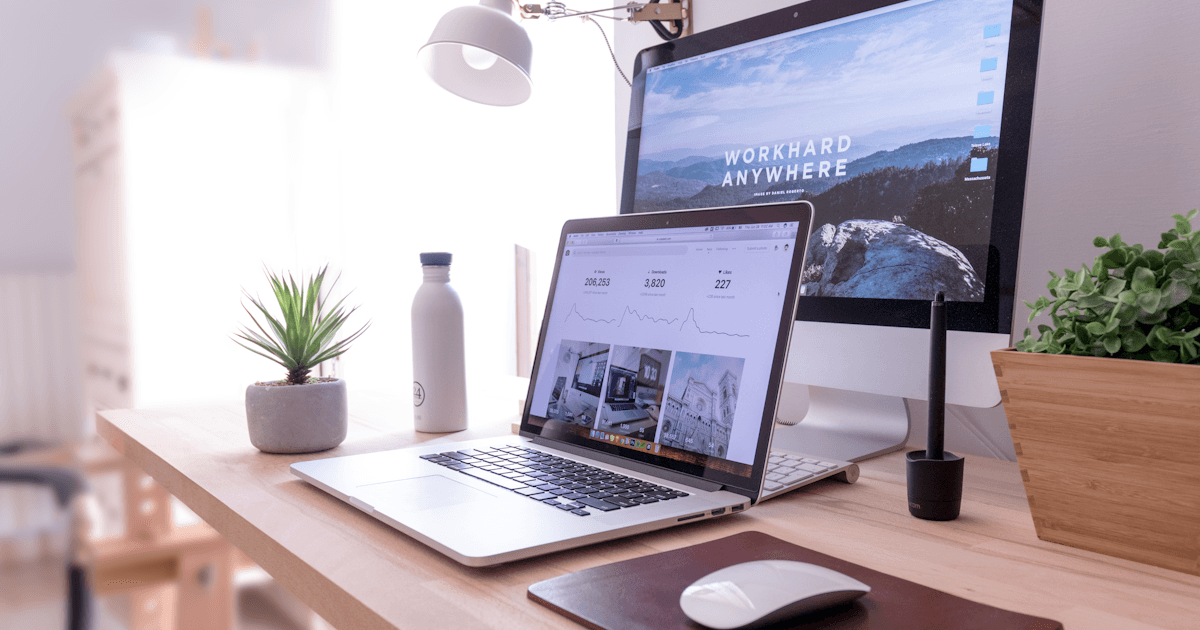
Your Medium article's cover image is the first thing readers see. In a feed full of stories, it determines whether someone clicks or keeps scrolling. This guide covers everything you need to know about Medium cover images in 2026.
Medium Cover Image Size
Recommended: 1400 x 788 pixels (16:9 ratio)
This is Medium's optimal size. Using these exact dimensions ensures your image displays correctly across all contexts:
- Medium homepage
- Publication pages
- Mobile apps
- Social media shares
Minimum Requirements
| Dimension | Requirement |
|---|---|
| Minimum width | 600px |
| Minimum height | 338px |
| Aspect ratio | 16:9 (1.78:1) |
| File formats | JPG, PNG, GIF |
| Max file size | 25MB |
What Happens With Wrong Sizes
Too small: Appears pixelated and blurry, especially on retina displays
Wrong ratio: Medium crops to 16:9, potentially cutting off important elements
Too large: Longer upload times, no visual benefit
Where Your Cover Image Appears
Your chosen image displays differently in each context:
1. Article Page (Top)
The full image displays as a hero at the top of your article. This is where it looks best and where dimensions matter most.
2. Medium Homepage
Cropped to a smaller thumbnail. Important elements should be centered to survive this crop.
3. Publication Feed
Similar thumbnail treatment. Your image competes directly with dozens of others.
4. Social Sharing (Twitter, Facebook, LinkedIn)
Medium generates Open Graph images using your cover. If you skip the cover image, Medium uses a generic branded image—a missed opportunity.
5. Email Digests
Small thumbnail in Medium's email newsletters. High contrast images work best at small sizes.
How to Add a Cover Image
Method 1: Drag and Drop
- Open your draft on Medium
- Click at the very top of the article (before the title)
- Drag your image file directly
- Medium automatically places it as the cover
Method 2: Plus Button
- Click at the top of your draft
- Click the + button that appears
- Select the camera icon
- Choose your image file
- Position as needed
Method 3: Paste URL
- Click at the top of your draft
- Paste an image URL directly
- Medium fetches and embeds the image
This works with Unsplash URLs—paste a photo's page URL and Medium imports it automatically.
Choosing the Right Cover Image
What Works
Relevant to content - The image should hint at what the article discusses
High contrast - Stands out in busy feeds
Simple composition - One clear focal point survives cropping better
Faces perform well - Human connection draws clicks (when appropriate)
Text-free - Avoid images with text that might get cropped
What Doesn't Work
Generic stock - "Person typing on laptop" is invisible at this point
Cluttered images - Too much detail gets lost at thumbnail size
Dark images - Can blend into Medium's interface
Text overlays - Often cropped awkwardly, hard to read small
Misleading images - Clickbait damages trust and hurts long-term growth
Cover Image Best Practices
1. Center the Important Elements
Medium crops from edges in different contexts. Keep your focal point in the center third of the image.
+------------------------+
|                        |
|   +----------------+   |
|   |   SAFE ZONE    |   |
|   |                |   |
|   +----------------+   |
|                        |
+------------------------+
2. Test Across Contexts
Before publishing, check how your image looks:
- In the article preview
- In your drafts list (thumbnail view)
- On mobile (use Medium's app)
3. Match Your Publication's Aesthetic
If writing for a publication, review their existing covers. Some publications have style guides or preferred aesthetics.
4. Consider the Title Overlay
Medium doesn't overlay text on cover images, but when shared socially, the title may appear nearby. Ensure they don't clash.
5. Optimize File Size
Smaller files load faster. Run images through a compressor like TinyPNG or Squoosh before uploading. Aim for under 500KB.
Where to Find Cover Images
Free Options
| Source | Best For | Notes |
|---|---|---|
| Unsplash | Editorial quality | Integrates with Medium |
| Pexels | Business/lifestyle | Good variety |
| Pixabay | Illustrations | Mixed quality |
Unsplash + Medium Integration
Medium has built-in Unsplash integration:
- Click the + button
- Select the camera icon
- Click "Unsplash" tab
- Search and insert directly
This is the fastest way to add quality cover images without leaving Medium.
Premium Options
For unique images that stand out:
- Shutterstock - Largest library
- Adobe Stock - Creative options
- iStock - Good value plans
Create Your Own
Tools for non-designers:
- Canva - Templates for Medium covers
- Figma - More control, still free
- Photoshop/Affinity - Full professional control
Common Mistakes
1. Skipping the Cover Image Entirely
Articles without covers get lost in feeds. They also look incomplete when shared on social media.
2. Using the Same Image as Everyone Else
Top Unsplash results are overused. Dig deeper or search less obvious terms.
3. Ignoring the Preview
Always preview before publishing. What looks good in your editor may crop poorly in feeds.
4. Using Screenshots as Covers
Screenshots rarely make good covers—they're detailed, low contrast, and don't communicate at thumbnail size.
5. Adding Medium's Logo
Don't add Medium's logo to your cover. It looks amateur and Medium already provides platform branding.
Advanced Tips
Create a Consistent Style
If you publish regularly, develop a recognizable visual style:
- Same color palette
- Similar composition style
- Consistent photographer or source
This builds brand recognition across your articles.
Consider Creating Custom Graphics
For how-to content, simple custom graphics can outperform photos:
- Clear visual hierarchy
- Your brand colors
- Direct relevance to content
Tools like Canva have Medium cover templates that make this easy.
A/B Test Your Covers
Medium doesn't have built-in A/B testing, but you can experiment:
- Publish with one cover
- Note performance after 48 hours
- Try a different cover
- Compare results
Check Analytics
Medium's stats show where readers come from. If social shares are underperforming, your cover might be the issue.
FAQ
Q: Can I change the cover image after publishing?
Yes. Edit your story, remove the current image, and add a new one. The change appears immediately, though cached versions on social media may take time to update.
Q: Do I need to credit free stock photos?
For Unsplash and Pexels, attribution isn't legally required. However, Medium has a convention of adding credit at the bottom of articles. It's good practice.
Q: Should I add text to my cover image?
Generally no. Text gets cropped in thumbnails and competes with your article title. Let the image speak visually and the title speak verbally.
Q: What if my cover image has people in it?
Stock photos with recognizable people typically have model releases for commercial use. If using your own photos, get permission. Never use photos of people in misleading contexts.
Q: Does the cover image affect SEO?
Medium articles can rank in Google, and images contribute to SEO through alt text. Always fill in the alt text field when adding your cover image.
Find Your Perfect Medium Cover
Stop settling for the first "okay" image you find. CoverImage.app uses AI to match images to your actual content—not just keywords. Paste your article, get relevant cover suggestions in seconds.
Ready to find your perfect cover image?
Try CoverImage.app - paste your content, get AI-matched images instantly.
Try it Free